In our increasingly connected digital ecosystem, maintaining privacy, bypassing localized geoblocks, and automating mobile workflows are essential tasks for developers and general users alike. Whether you need to test localized applications, bypass restrictive firewalls, or manage multi-accounting social media networks, routing your phone's traffic through a secure test your IP connection with a proxy checker is the industry-standard solution.
However, configuring network settings on mobile devices is slightly different from desktop computers. Operating systems like iOS and Android have unique network interfaces, and cellular mobile data requires different routing architectures than standard Wi-Fi networks. In this guide, we provide complete, step-by-step instructions showing how to connect your phone to a proxy server, covering both iPhone and Android systems.
What is a Mobile Proxy Connection?
A mobile proxy connection is a network configuration that routes your smartphone's outbound internet traffic through an intermediary proxy server. This setup hides your device's real IP address and replaces it with the proxy's IP, securing your mobile browsing privacy and bypassing geoblocks.
By intercepting your network requests, the proxy server acts as an anonymous gateway. When you load a website or launch an app, the destination server only logs the IP address and Autonomous System Number (ASN) of the proxy server, keeping your phone's physical coordinates and broadband provider details completely hidden.
Why Connect Your Phone to a Proxy Server?
Mobile device proxy integration offers major operational advantages for security audits, data harvesting, and regional targeting:
- Evading Anti-Bot Shields: Modern mobile applications use advanced anti-bot systems. Connecting your phone to premium ProxyVoxy residential or mobile proxies allows you to interact with these systems without triggering automated rate blocks.
- Bypassing Location Restrictions: Many video streaming portals and banking applications restrict access to specific countries. By routing your phone's traffic through a geofenced proxy server, you can access localized inventories and price details globally.
- Mobile App Development & Debugging: System developers need to test how their applications perform across different network speeds and regional locations. Configuring a proxy on a mobile test device enables real-time auditing of localized API payloads.
How to Connect an iPhone to a Proxy Server
Apple iOS supports native proxy configuration for active Wi-Fi connections. Follow these steps to configure your settings manually:
- Open Wi-Fi Settings: Launch the Settings app on your iPhone and tap on the Wi-Fi menu.
- Select Network details: Locate the active Wi-Fi network you are connected to and tap the blue "i" (information) icon next to its name.
- Access Proxy Settings: Scroll down to the bottom of the network detail panel to locate the HTTP Proxy section, then tap Configure Proxy.
- Select Manual Configuration: Tap Manual from the configuration options.
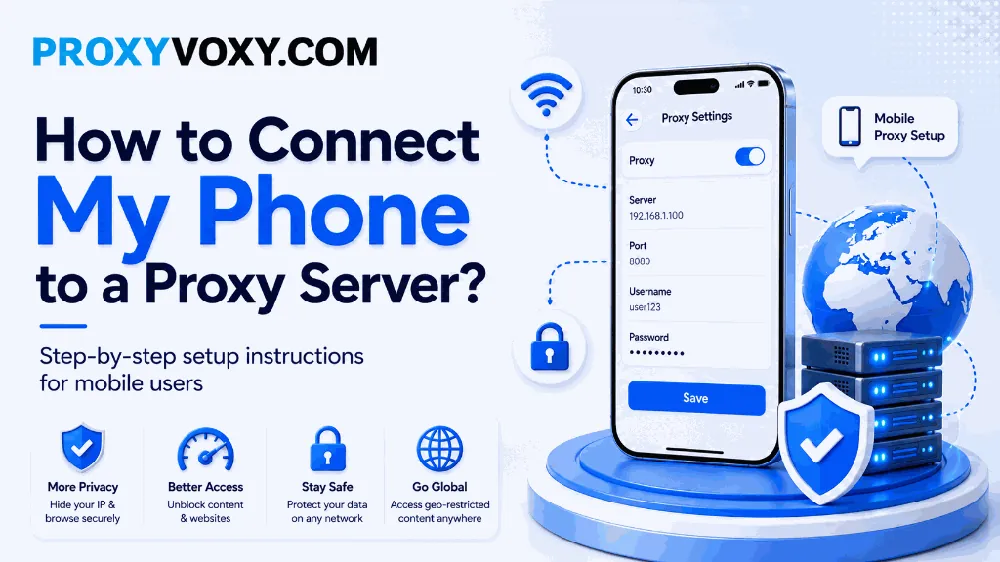
- Enter Connection Details: Enter your proxy server's hostname or IP address in the Server field, and the port number in the Port field.
- Authenticate Connection: If your proxy provider requires authentication, toggle the Authentication switch to on. Enter your proxy username and secure password in the respective fields.
- Save Settings: Tap Save in the top-right corner to lock in your configuration.
How to Connect an Android Phone to a Proxy Server
The Android operating system provides built-in manual proxy settings within its Wi-Fi network properties. Follow these setup instructions:
- Navigate to Wi-Fi Menu: Open your phone's Settings app, select Connections or Network & internet, and tap Wi-Fi.
- Edit Network Properties: Tap the Gear icon or long-press the name of your active connected Wi-Fi network, then tap the Edit/Pencil icon or select View More.
- Locate Proxy Settings: Tap the Proxy dropdown menu and change the selection from None to Manual.
- Configure Hostname and Port: In the Proxy hostname field, enter the IP address or host domain of your proxy server (e.g.,
proxy.proxyvoxy.com). Enter the numeric connection port in the Proxy port field (e.g.,7777). - Set Bypass Rules: In the Bypass proxy for field, you can list specific local domains or IP subnets that should bypass the proxy (separated by commas).
- Save Configuration: Tap Save to apply the proxy. When you open a browser, Android will prompt you to enter your username and password if authentication is required.
Wi-Fi vs. Cellular: Configuring Proxies on Mobile Data
A key limitation of both iOS and Android is that their native system settings only allow proxy configurations on Wi-Fi connections. There are no built-in settings to configure HTTP or SOCKS5 proxies directly for cellular 4G/5G mobile data.
To route your cellular mobile data through a proxy server, you must use a third-party application that creates a local VPN tunnel. These apps intercept all cellular data packets and forward them to your proxy server:
- For iPhone Users: Download and install Shadowrocket or Potatso from the App Store. These utilities allow you to configure SOCKS5 and HTTP proxies that remain active when switching to cellular networks.
- For Android Users: Download Postern, SuperProxy, or V2RayNG from the Google Play Store. These tools establish local loopback VPN configurations to forward all mobile data traffic to your ProxyVoxy SOCKS5 gateways.
Mobile Proxy Setup Comparison: iOS vs. Android
The table below highlights the differences in proxy support and capabilities between iOS and Android mobile systems:
| Feature Support | Apple iOS | Android OS |
|---|---|---|
| Native Wi-Fi Proxy Setup | Supported (Manual & Auto-Config PAC) | Supported (Manual & Auto-Config PAC) |
| Native Cellular Proxy Setup | Not Supported (Requires third-party VPN client) | Not Supported (Requires third-party VPN client) |
| SOCKS5 Protocol Support | Requires third-party client apps | Requires third-party client apps |
| Credential Auth Prompt | Integrated in Wi-Fi settings panel | Prompts via system popup on first browse |
| Setup Complexity | Simple (Under 2 minutes) | Simple (Under 2 minutes) |
Common Mobile Proxy Setup Troubleshooting
If your phone loses internet access after configuring the proxy settings, run through this quick troubleshooting checklist:
- Double-check Port Numbers: Verify that you entered the correct port number in the port field. Typos in port numbers are the most common cause of connection drops.
- Validate Authentication: Ensure your proxy provider credentials are correct. A single incorrect character in your username or password will cause the proxy server to reject your connection.
- Check IP Whitelisting: If your proxy uses IP-based authentication, log into your ProxyVoxy dashboard and ensure your phone's active public IP address is added to the whitelisted list.
- Switch Network Bands: Sometimes, public Wi-Fi firewalls block outgoing proxy handshakes. If possible, try switching networks or routing connections over 4G/5G using local VPN tools.
FAQ: Frequently Asked Questions
How do I check if my phone is connected to the proxy?
You can check by visiting an IP checker site like proxyvoxy.com or whatismyip.com before and after configuring the proxy settings on your phone. If the displayed IP address and geographic location change to match your proxy server's details, your phone is successfully routing traffic through the proxy.
Can I use SOCKS5 proxies natively on iPhone or Android?
No, iOS and Android do not natively support SOCKS5 authentication settings in their default system configurations. To route your phone's traffic over a SOCKS5 proxy, you must download a third-party application like Shadowrocket for iOS or Postern/SuperProxy for Android.
Why does my phone lose internet connection after setting up a proxy?
Losing connection usually happens due to configuration typos in the proxy server address or port, incorrect authentication credentials, or IP whitelisting rules. Verify your proxy settings in the network panel and ensure your proxy server is online.
Is it safe to connect my phone to a public proxy?
No, public or free proxies are highly dangerous. They carry high risks of data interception, credential logging, and malware injection. Always route your smartphone's traffic through trusted, private proxy providers like ProxyVoxy to guarantee encrypted, secure data transmission.